Why PNG stays primary
PNG preserves the generated artwork exactly as an image, which makes it easier to inspect before importing into engraving software.
Both PNG and SVG can be useful in engraving workflows, but they solve different problems. LineArtReady treats PNG as the primary export and SVG as a beta option to inspect before production.
Reviewed by LineArtReady · Last reviewed 2026-06-15
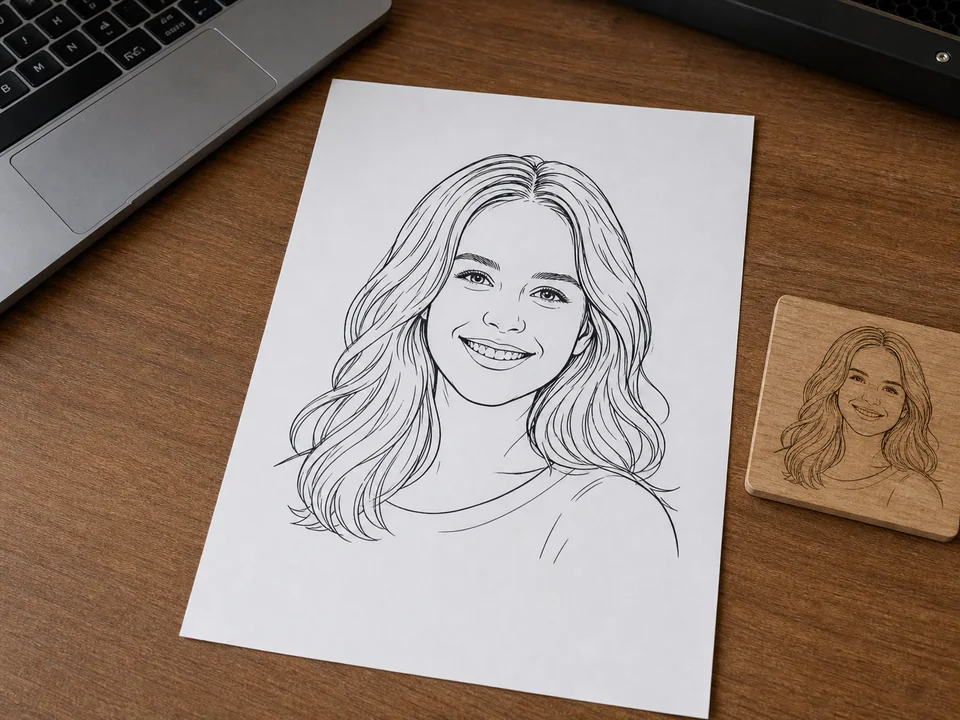
PNG preserves the generated artwork exactly as an image, which makes it easier to inspect before importing into engraving software.
SVG beta is useful when your workflow prefers vector paths, especially for simpler artwork. It is less reliable when automatic tracing turns dense line art into many small shapes.
Use the downloaded PNG as the reliable artwork input, then size, position, and test the engraving settings in your laser software. If you generate the beta SVG, inspect the vector paths and simplify or adjust them if your laser workflow needs cleaner geometry.
Yes. PNG is the primary export, and SVG beta can be generated from a selected finished PNG.
Yes, many engraving workflows can use raster artwork. Final suitability depends on your laser software, material, size, and settings.
Treat SVG as a beta export. Open it in your laser software, check path quality, and use the PNG when the traced paths are not suitable.
Upload a photo, adjust the engraving filters, generate line art, and download a PNG.
Open LineArtReady