Start with the cleanest logo file
Use a flat logo image if you have one. Avoid photos of signs, screenshots with compression, or logos on textured backgrounds.
Logos are different from photos. The cleanest results come from simple, high-contrast artwork with readable shapes and limited fine detail.
Reviewed by LineArtReady · Last reviewed 2026-06-15
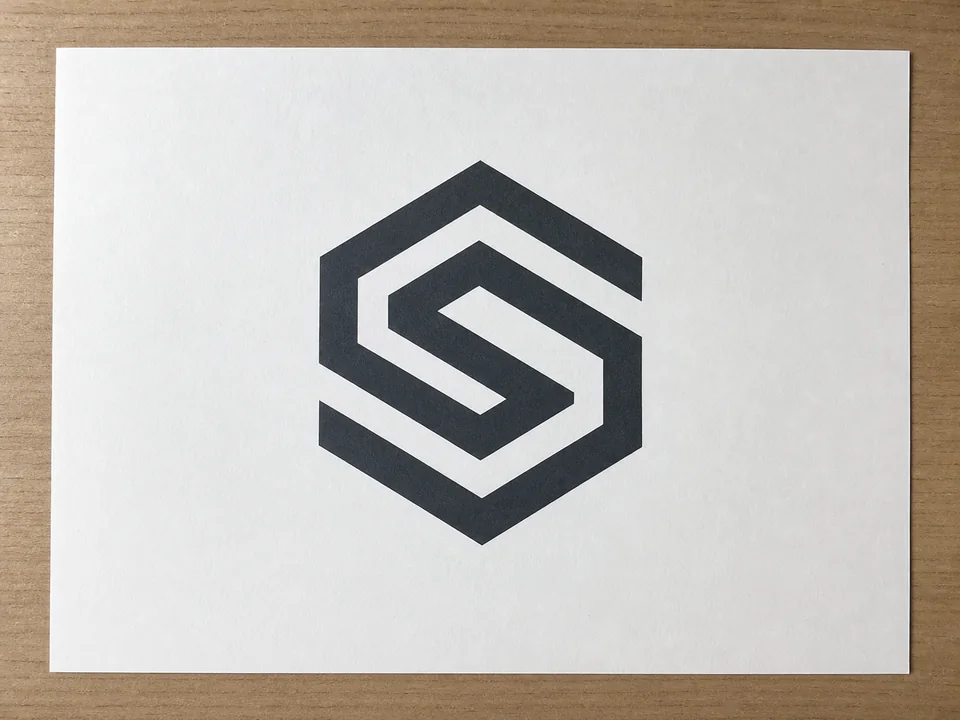

Use a flat logo image if you have one. Avoid photos of signs, screenshots with compression, or logos on textured backgrounds.
Very thin text, gradients, and tiny marks may not engrave well. Simpler logo artwork usually performs better.
LineArtReady exports PNG as the primary file and can generate SVG beta from a selected PNG. Check beta paths before using them for production.
It can help with simple logo images, but clean source artwork matters more than with normal photos.
Yes. Simple logo-style artwork is a good candidate for SVG beta, but inspect small lettering and path quality before cutting.
Simple, high-contrast, high-resolution logo images with minimal small text.
Upload a photo, adjust the engraving filters, generate line art, and download a PNG.
Open LineArtReady