Generate PNG first
Create and select the PNG version you want. SVG beta is attached to that selected result, so switching between versions also switches the available SVG state.
SVG beta gives you a vector version of a selected generated PNG. It is useful for testing path-based workflows, but it should be checked before cutting or engraving.
Reviewed by LineArtReady · Last reviewed 2026-06-16
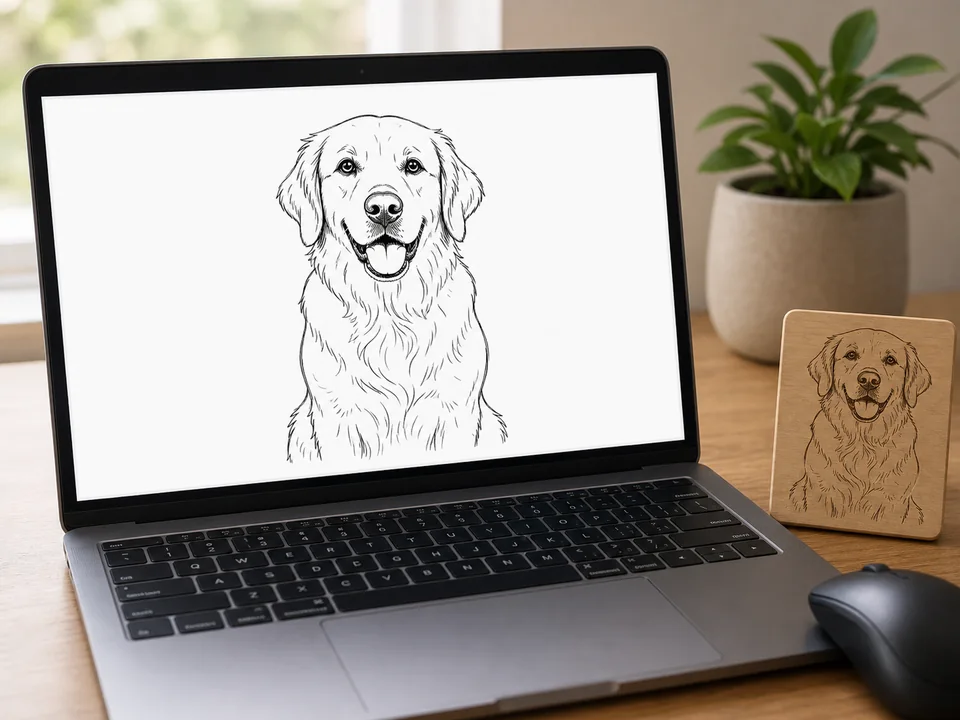
Create and select the PNG version you want. SVG beta is attached to that selected result, so switching between versions also switches the available SVG state.
Vector conversion can take up to a couple of minutes. The PNG remains available while the SVG beta file is being prepared.
Open the SVG in your laser or design software and check for tiny fragments, overly dense curves, or shapes that do not match the PNG closely enough.
No. SVG beta is generated from an already-created PNG and does not use another generation credit.
Yes. Keep the PNG as the reliable primary file and use the SVG beta when the traced paths suit your workflow.
The app converts the selected PNG into vector paths and checks the result. More complex line art can take longer.
Upload a photo, adjust the engraving filters, generate line art, and download a PNG.
Open LineArtReady